WHAT. HOW DID YOU MAKE DROPDOWNS IN HTML
okokokok i just found this out too bc i was annoyed that you usually need javascript for them, or so i thought
turns out there’s a very easy built-in way to have a dropdown. it’s the <details> tag. you do something like
<details>
<summary>this is the title</summary>
this is the stuff under the dropdown when clicked
</details>
then you just edit it accordingly in css to make it look however you want font/color wise and boooooom you have a nice and easy dropdown!
amatopunk:
amatopunk:
also while i’m on the train. hi. if you have a rentry or a carrd or whatever, consider neocities. it’s so awesome. html is hard and time-consuming for you in comparison to the ease of a rentry? no problem + understandable, i know how it can be + i’ve got you covered
check out sadgrls layout builder and all her other resources for the layout of the page [it looks good on mobile too, and everything within the code is labelled, so you know exactly where each element is], and html-online to convert rich text to html text, or alternatively markdowntohtml to convert markdown [what rentry uses] to html. just copy-paste the converted text into the relevant place in the layout code, and boom. you’re pretty much done aside from however much customization you want to do or not do. you can literally just stop there if you so choose
i promise you it doesn’t need to look perfect like all the sites on the homepage. it doesn’t matter, you can edit that shit little by little whenever you want. you can learn html in tiny little pieces so it becomes a little easier to edit your site over time, if you want. but crucially, you own that site. you can freely download and use that site and everything on it however you want. wanna self host it later? go ahead! it’s YOURS. it helps promote a more independent internet AND you get to have fun. make a neocites now
i mean hell you can even make it look just like a rentry. plain colored background + center the text and it looks very similar and simple/clean. also webrings are so fun if you’ve got friends who also have a neocities, you can all basically link your accounts together with arrows and have it loop around to all of your different sites
another tip for people who might have a hard time with making a neocities, or just something that makes things easier in general:
the inspect element tool on firefox [and possibly chrome, but i’m not as familiar with that] is a lifesaver!
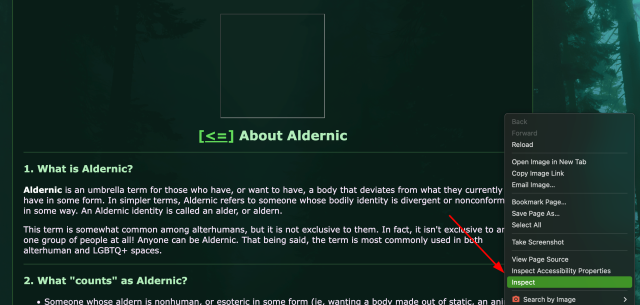
you can find it by right clicking on any element on your neocities site.
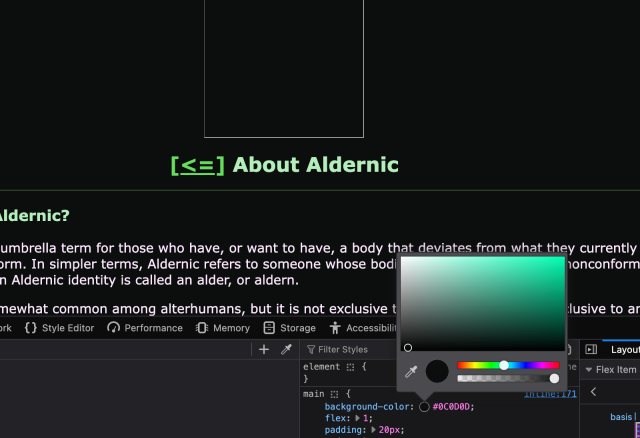
let’s say i want to change this background to black, instead of the green background. but i don’t know exactly what color hex to use, maybe i want it to be partly transparent, and i also don’t want to do a million previews through dozens of hex codes. you can do that with inspecting!
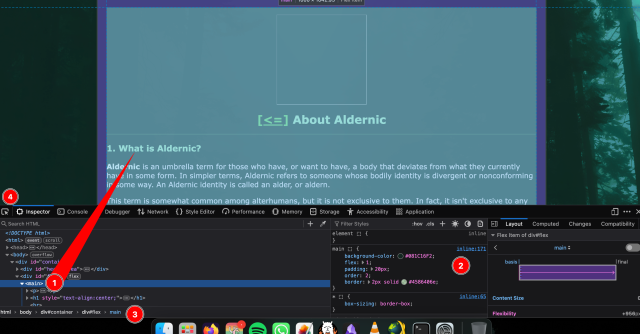
okay, so i right-clicked on this box and clicked inspect. this big menu pops up, so let me run through what each of these things are, in numbered order.
- when you click on an element and then inspect, it’ll jump you to whatever the element you had selected was. if you hover over the html anywhere, it’ll show you a visual highlight of exactly where on the screen that code affects.
- this is the css of the element, and it’s what i’ll be using to edit the background. it also shows you any parent elements [elements that the existing element is inside]!
- this area will show you the parent elements as well, and you can click on each one to jump to those. useful if your editing doesn’t seem to affect anything- you might be on too specific of an element and need to go back a bit
- the little select icon is a way for you to point and click on any other element for editing
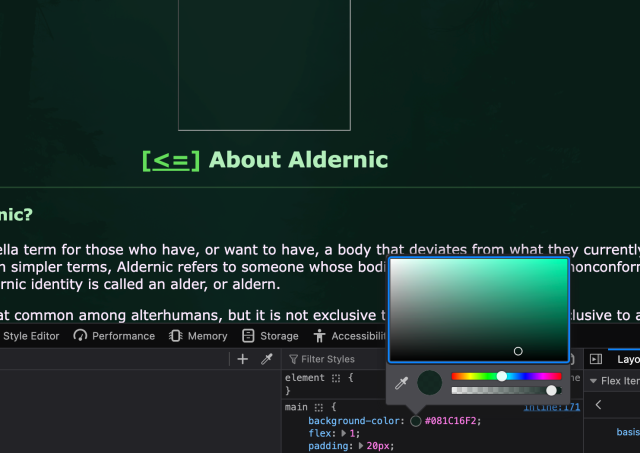
alright, so for changing the color, you need to go to the css [2].
you’ll see “background-color: #hexcodehere”, and there’s a little color there. if you click the color itself, it should pop up as a little color selector screen, and you can easily change the color and preview how it would look if you put it in the actual code editor! there’s even a color picker, if you want it to be the same color as something else on the page!
you can use the inspect element to do so much more than this! you can add html and css, edit any of it, change any aspect. toy around with it; when you reload the page, everything resets. this is not actually editing your site, this is a preview- so make sure if you like what you changed, you copy it and replace the old code with the new code!